How to configure O365 exchange email manually in outlook for windows pc?
Office 365- Outlook Configuration Manually in Windows PC.
Step-1
Open Control Panel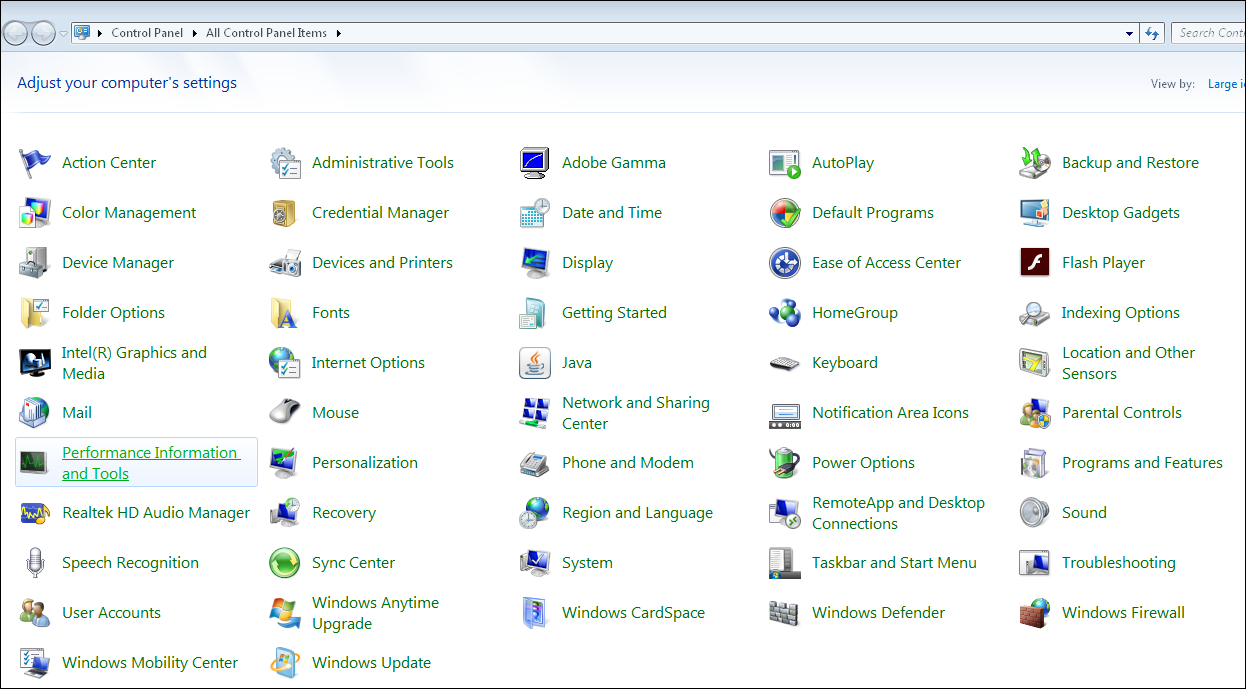
Step-2
Click on Mail
Step-3
Click on Email Accounts
Step-4
Click on New
Step-5
- Select E-mail Account
- Click on Next

Step-6
- Select Manual setup or additional server type
- Click on Next

Step-7
- Select Microsoft Exchange Server or compatible service
- Click on Next

Step-8
Enter the following details in the field...- Server: outlook.office365.com
- User Name: Login Name
Click on Next

Step-9
- Click on Security tab
- Uncheck Encrypt data between Microsoft Outlook and Microsoft Exchange

Step-10
- Select Anonymous Authentication
- Click on Apply

Step-11
- Click on Connection tab
- Check Connect to Microsoft Exchange using HTTP

Step-12
Click on Exchange Proxy Settings
Step-13
- Enter outlook.office365.com
- Check Only connect to proxy servers that have this principal name in their certificate
- Enter msstd:outlook.com
- Check On fast networks, connect using HTTP first, then connect using TCP/IP

Step-14
- Select Basic Authentication
- Click on OK

Step-15
- Click on OK

Step-16
- Click on Check Name

Step-17
- Enter Email Address and Password
- Check Remember my credentials as you want

Step-18
- Click on Next

Step-19
- Click on Finish




Comments
Post a Comment
Please do not enter spam link.