Posts

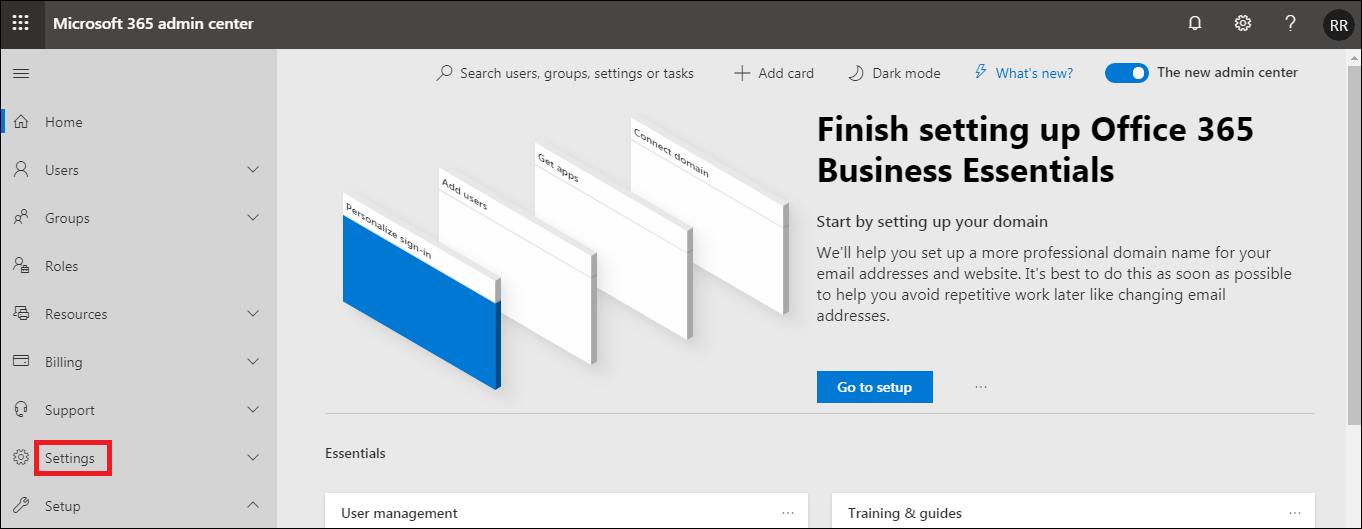
How to turn off possword expiration in O365 or set user password expire?

Image
You can set the password policy for Never Expire in O365 Login Office365 Admin Web Console Expand Settings Go to Security & Privacy Do ON (Set user passwords to never expire) Click on Save Click again on Save Finally you find Never

Just 6 Important Basic Steps for configurartion Panasonic KX-TES824

Image
You can configure Panasonic EPABX System KX-TES824 after fallow just few steps- Enter in programing mode then after you configure just 6 steps as given below- Steps-1 Enter the in programing mode Enter Code "000" Set the Date & Time according to Instructions Date & Time Setup[000] Steps-2 Enter the in programing mode Enter Code "009" Configure Extention Number as given below Plan in Note Extention Number Assigning[009] Note- Programeable number follow as below- Plan 1:   100-199 Plan 2:   100-499 Plan 3:   20-49 Steps-3 Enter the in programing mode Enter Code "121" Select "0" or "9" according you Automatic Line Access[121] Steps-4 Enter the in programing mode Enter Code "401" Select DTMF Dial Mode[401] Steps-5 Enter the in programing mode Enter Code "400" Select "Connect" for you CO Line Select "No Connect" for Blank CO Port ...

How to configure NS300 EPABX? What is the basic steps for configuration?

Image
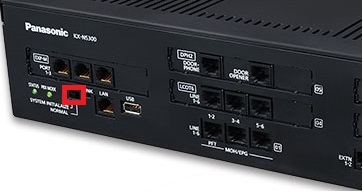
We can fallow some steps according below for basic configuration Power ON NS300 Set in Normal Mode (By In the front of Switch) Login EPABX with help of Browser and IP Address (192.168.0.101) User- INSTALLER in Capital Letter Password- 1234 (By Default) Change the IP Address according your LAN Set the Date/Time and Time Zone Configure Numbering Plan as per your required Extention's Digit Configure Dialling Number (except "0") Configure Call Pickup Number Configure COS Lines and Discconect another Not Connected Lines Configure Incomming Call Distribution Group Configure Speed Dialing Configure TRS Level

How to enable barge in for call monitoring in pnasonic ns300 epabx?

Image
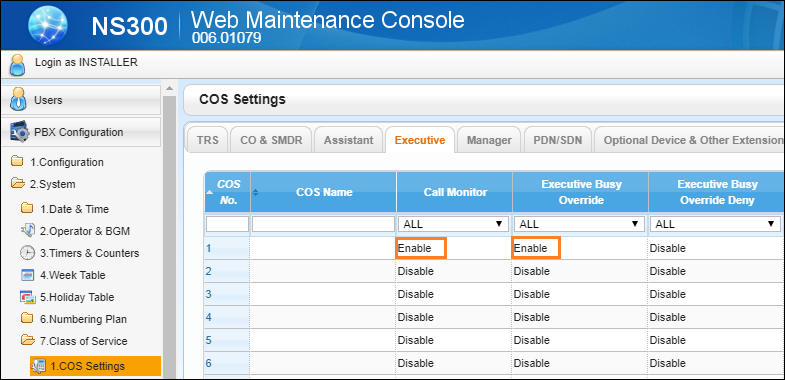
We can know who is talking on busy extention and also we can hear the conversation. We can join the call when you find busy tone. Login your  Web Maintenance Console Go to  PBX configuration Expand  System Expand  Class of Service Select  COS Settings Go to  Executive Enable the  Call Monitor  for hearing another call Enable also Executive Busy Override for joining another call To Monitor To Join an Intercom Call To Prevent Joining Call (Executive Busy Override Deny)

How to configure Externel and Internal call block in panasonic ns300 epabx?

Image
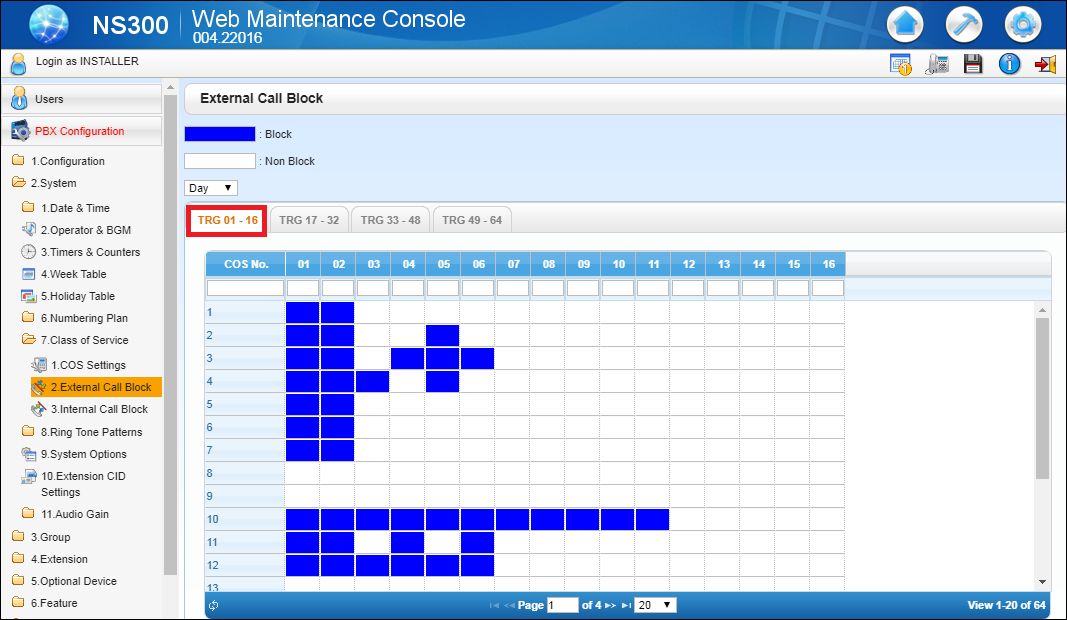
External Call Block- We can configure external call block settings in panasonic ns300 epabx. From doing this we can block outgoing calls from extentions of specific CO(Trunk) line. We restrict the CO Lines for preventing calling. Login your  Web Maintenance Console Go to  PBX configuration Expand  System Expand  Class of Service Select External Call Block Go to TRG 01-16 Draw the Blue Square for blocking CO Lines Internal Call Block- We can configure internal call block settings in panasonic ns300 epabx. From doing this we can block calling between two extention.  Login your  Web Maintenance Console Go to  PBX configuration Expand  System Expand  Class of Service Select  Internal Call Block Go to COS 01-16 Note- 1- COS1 and COS2 can make calls to COS1, COS2, COS3, COS4, COS5 & COS6           2- COS3 and COS4 can make calls to COS1, COS2, COS3 & COS4 only. ...
How to configure MTNL PRI in panasonic ns300 epabx?

We can connect and configure PRI line of MTNL in PNX. ·          Make the Cross Cable ·          Check the Status of Synchronization ·          Go to PRI Card Properties- Make Disable CRC Mode4

How to configure TRS Level in panasonic ns300 epabx?

Image
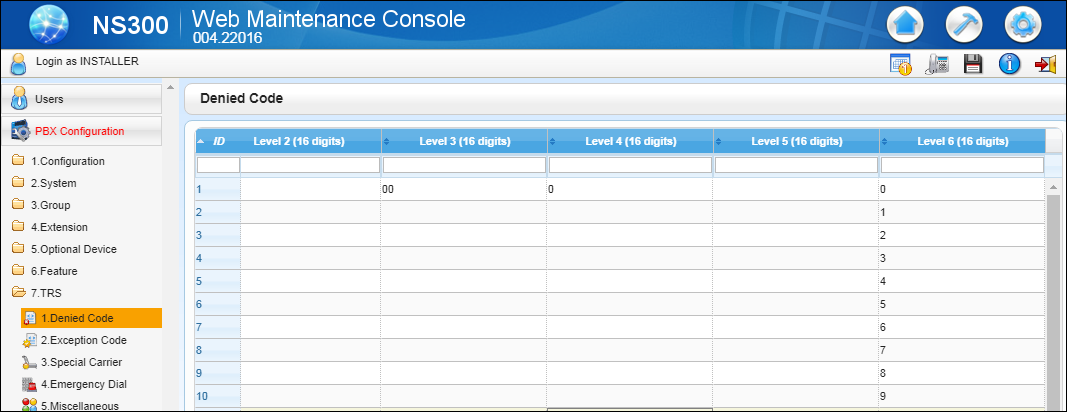
We can configure TRS Level in panasonic EPABX.                   Toll Restriction(TRS)/ Call Barring- We can programe TRS level as defined condition below-  TRS Level   Denied Code   Exception Code  Level 1  Not Programmable  Not Programmable  Level 2  Table for Level 2  Table for Levels 2 through 6  Level 3  Table for Levels 2 and 3  Table for Levels 3 through 6  Level 4  Table for Levels 2 through 4  Table for Levels 4 through 6  Level 5  Table for Levels 2 through 5  Table for Levels 5 through 6  Level 6  Table for Levels 2 through 6  Table for Level 6  Level 7  Not Programmable  Not Programmable Login your  Web Maintenance Console Go to  PBX configuration ...